How to Use Print Pail
By Print Pail Team · Updated
This guide shows how to choose a printable on the printables shelf, set its options and print it at the right size. Each page works in your browser: change an option and the sheet redraws at once.
A page prints at the wrong size or a generator fails? Use the contact page.
Pick a printable and its options
Open the printables shelf on the home page and choose a type, then set its options such as square size, difficulty or theme. Free printables on Print Pail need no sign-up, and the options sit in a panel beside the sheet preview.
Every page starts with sensible defaults, so you can print straight away or change one option at a time. Options that make a teacher or parent copy, such as “Show the answers”, are tick boxes under the other settings.
Check the preview and print at actual size
The preview shows the page as it will print; choose Actual size or 100% in the print dialog so sizes stay true. Then press the “Print this sheet” button, which opens the browser’s own print dialog.
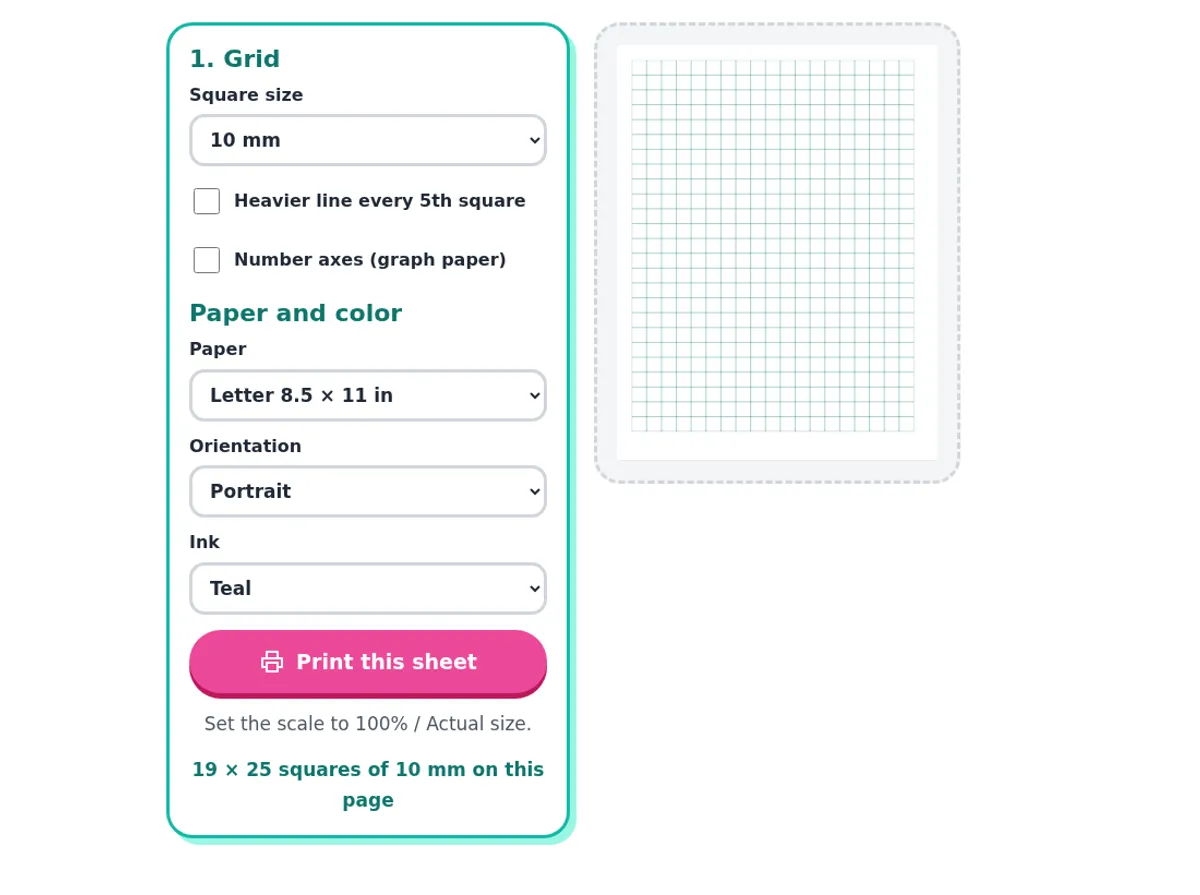
The options differ from page to page. These are the settings each printable offers.
| Page | Options you set | What the PDF contains |
|---|---|---|
| Grid paper | Square size, heavier line every 5th square, numbered axes, paper, orientation, ink | A ruled grid that fills the page |
| Bookmarks | Size, pattern, optional name, hole-punch circle | Bookmarks to cut out |
| Fractions worksheets | Type, largest denominator, number of problems, worksheet number, answers | A numbered worksheet, with an answer copy if ticked |
| Tape diagram | Kind of problem, the numbers, show the answer | The drawn tape and a worksheet |
| KWL chart | Chart type, topic, lines per column, filled example | A column chart for notes |
| Connect the dots | Shape, number of dots, faint outline guide | Numbered dots to join |
| Sticker paper | Shape, width, height, margin, gap, inside, staggered rows | A sheet of sticker outlines |
Choosing the paper size for your country
Pick Letter for the US and Canada and A4 elsewhere; the PDF page size matches the choice. Letter is 8.5 × 11 in and A4 is 210 × 297 mm, set in the “Paper” menu, with Portrait or Landscape below it.
In the print dialog, set the scale to 100% or Actual size and leave “Fit to page” off. Printers add their own margins, so a page set to fit to page will print smaller than the stated size, and a ruler or grid will no longer measure true.
| Print dialog setting | Result |
|---|---|
| Actual size or 100% | Squares, rulers and bookmarks keep their stated size |
| Fit to page | The sheet shrinks to the printer’s margins and sizes are no longer exact |
| Paper size differs from the menu | The sheet is cropped or leaves a blank edge |